Using the OuterSpatial App to Check In
The days of scribbling on damp paper forms at a remote trailhead hunter check station, fumbling for a pen that barely works, or worse, finding the box empty and having no way to legally check in, are thankfully fading into the past for Hawaii hunters. It was a common frustration, especially when you’d driven hours in the dark to hit your unit at first light. Now, the Department of Land and Natural Resources (DLNR) Division of Forestry and Wildlife (DOFAW) has streamlined this essential process, moving to a digital platform that makes checking in and out of Hawaii’s public hunting units as simple as a few taps on your smartphone. This guide will walk you through everything you need to know about using the OuterSpatial app for your Hawaii hunts.
The Evolution of Checking In: From Paper to Pixels
For years, Hawaii hunters relied on a system that, while functional, often felt like it belonged in a different era. The advent of digital tools has been a game-changer, bringing convenience and efficiency to the often-rugged reality of hunting in the islands.
Why the Switch? Frustrations with Traditional Methods
Think back to the old way. You’d drive down a bumpy, unpaved road in the pre-dawn darkness, often with patchy or non-existent cell service, hoping to find the designated hunter check station. Once there, the routine was familiar: grab a flimsy paper card, fill out your name, license number, unit, and the time you entered. Sometimes, the pen wouldn't work, the forms were soaked from a passing shower, or, in many cases, the entire box was empty. It meant either hoping for the best, searching for a ranger, or, worst case, feeling like you weren't fully compliant before you even set foot in the field.
Then, at the end of a long, often physically demanding day of hunting, you’d have to return to that exact same remote check station to sign out, no matter how far out of the way it was. This added significant time and effort to an already tiring endeavor, cutting into valuable daylight hours or extending an already late return home. For hunters in areas like the Kau Forest Reserve or deep within the Kaohe Game Management Area on Hawaii Island, these drives were not trivial, and the paper system often felt like an unnecessary hurdle in a landscape already full of challenges.
Introducing OuterSpatial: What It Is and How It Helps
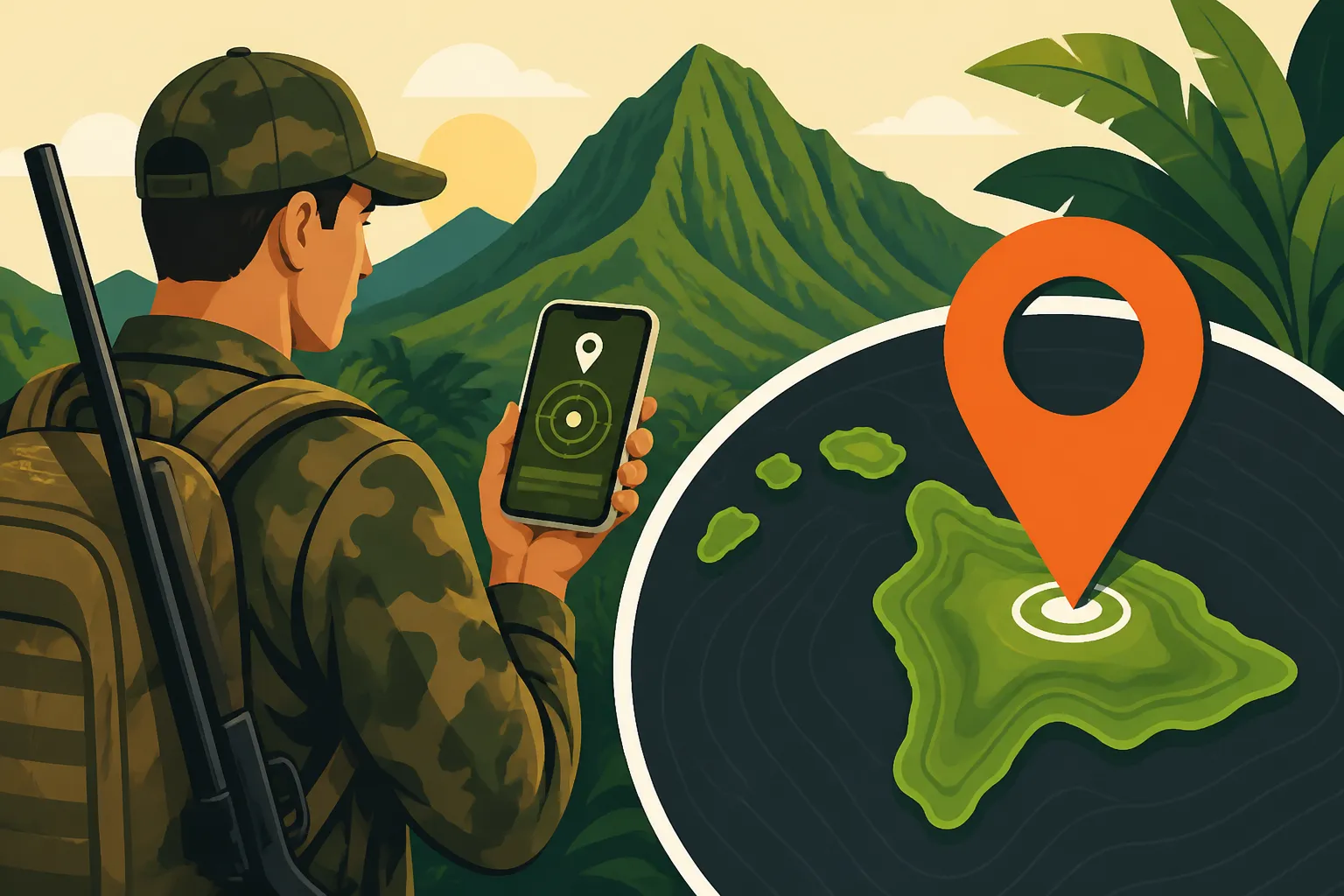
Enter OuterSpatial, the digital solution that Hawaii DOFAW has adopted to modernize its hunter check-in and check-out process. Essentially, it’s a mapping and recreation app that DOFAW has customized to manage access to its various public hunting units across the islands. This app acts as your digital hunter check station, allowing you to declare your presence in a hunting unit and your departure from it, all from your smartphone.
The primary benefit is convenience. No more tracking down physical check stations or worrying about paper forms. As long as you have your phone and some battery life, you can manage your hunt access right from your pocket. This is especially helpful when you’re hunting units that are Hawaii's Weekend and Holiday Hunting Rules only or that require specific entry times, ensuring you're compliant with all regulations. It also centralizes information, making it easier for DOFAW to track hunter numbers, manage unit capacity, and provide updates, all contributing to better wildlife management and hunter safety. For those who already use the GoHunt platform to purchase their Hawaii hunting licenses and permits, OuterSpatial integrates smoothly, making the entire process from license acquisition to field operations a cohesive digital experience.
Getting Started with OuterSpatial: Setup and First Steps
Adopting any new technology can feel a bit daunting at first, but the OuterSpatial app is designed to be user-friendly. Getting it set up properly before your hunt is crucial to avoid any last-minute headaches when you’re out in the field.
Downloading and Account Creation
The first step, naturally, is to download the OuterSpatial app to your smartphone. It's available for both iOS (Apple App Store) and Android (Google Play Store) devices. Just search for "OuterSpatial" and look for the familiar green and white logo. Once downloaded, you’ll need to create an account. This typically involves providing an email address, creating a password, and filling in some basic personal information. Make sure you use an email you check regularly, as this will be your primary point of contact for any app-related notifications or password resets.
It’s a good idea to complete this setup at home, where you have stable internet access. Trying to do it for the first time on a remote ridge with spotty service is a recipe for frustration. Take your time, familiarize yourself with the interface, and ensure all your personal details are entered accurately. This initial setup only needs to be done once, so getting it right from the start will save you a lot of hassle down the line. Many hunters find it useful to explore the app’s general features and map functions even before linking their specific hunting credentials, just to get a feel for how it works.
Linking Your Hawaii Hunting License and Permits
This is perhaps the most critical step for Hawaii hunters. Once your OuterSpatial account is active, you need to connect it to your official Hawaii hunting credentials. Hawaii’s hunting licenses and various permit-tags (like those for Axis Deer Hunting in Hawaii or Mouflon Sheep Hunting on Hawaii Island) are managed through the GoHunt Hawaii system. OuterSpatial and GoHunt are designed to work together, ensuring that your eligibility to hunt in specific units is correctly recognized.
To link your information, you’ll typically navigate to a "Partners" or "Integrations" section within the OuterSpatial app's settings. Here, you’ll find an option to connect your Hawaii DLNR/DOFAW account. You’ll usually be prompted to log in using the same credentials you use for the GoHunt Hawaii website. Once successfully linked, the app should display your active hunting license and any valid permits you currently hold. This linkage confirms to DOFAW that you are a legal hunter, hold the necessary Hawaii Hunting Licenses and What They Cost, and are authorized to access designated public hunting units. Without this crucial connection, you won't be able to check into any units that require it, so double-check that this step is completed well in advance of your hunt.
Your Digital Check-In: A Step-by-Step Walkthrough
The beauty of OuterSpatial lies in its simplicity once you're set up. It’s designed to streamline the process so you can focus on the hunt, not the paperwork. However, knowing the exact steps will ensure you don't miss anything important.
Before You Head Out: Pre-Checking In
While the actual check-in happens when you arrive at your unit, OuterSpatial allows for some helpful pre-hunt preparation. Before you even leave the house or your accommodation, open the app and review the hunting unit you plan to visit. You can access detailed maps of Hawaii's Hunting Units and How They Work, see boundary lines, and check for any special alerts or closures. This is a great opportunity to do some last-minute Scouting a Hawaii Hunting Unit Before Opening from the comfort of your home, ensuring you're aware of any changes since your last visit.
The app often lets you "favorite" units you frequent or even designate an "intended unit" for your upcoming trip. While this isn't a formal check-in, it helps the app pre-load relevant information and makes the actual check-in process quicker when you're on site. Think of it as preparing your digital backpack – making sure everything is in order before you hit the trail. Remember to charge your phone fully and consider bringing a portable power bank, especially if you plan to be out all day or are heading to a remote area where No Cell Signal on a Hawaii Hunt is common. The app uses GPS, which can drain your battery.
Checking In at the Unit
When you arrive at the designated entry point for your hunting unit, it's time to perform the official check-in. Open the OuterSpatial app and navigate to the relevant hunting unit. The app uses your phone's GPS location services to verify that you are within or near the unit boundaries, which is a fantastic feature for ensuring compliance.
Here's a typical sequence:
- Select the Unit: From the app's map or list, choose the specific hunting unit you're entering.
- Initiate Check-In: Look for a prominent "Check In" button or similar prompt.
- Confirm Details: The app will usually display your name, license number, and the current date/time. You might also need to select the species you intend to hunt (e.g., Hawaii Game Mammal Seasons like Axis deer, goats, or pigs) and the weapon you're using.
- Acknowledge Rules: There may be a checkbox to acknowledge that you've read and understand the unit's specific rules and regulations.
- Submit: Tap "Submit" or "Confirm" to complete the check-in. The app will usually provide a confirmation message or a visible timer indicating your active check-in status.
It’s crucial to wait for that confirmation. If you experience an issue, like a momentary loss of signal, try again or move to a spot with better reception if possible. This digital stamp marks your legal entry into the hunting area.
The All-Important Check-Out
Just as important as checking in is completing your check-out. Forgetting to check out can lead to unnecessary concerns for DOFAW staff who might assume a hunter is still in the field, potentially triggering search efforts or administrative follow-ups. It also impacts accurate data collection regarding hunting pressure and success.
When you're finished hunting for the day and are exiting the unit, simply open the OuterSpatial app again.
- Locate Active Check-In: The app will likely show your current active check-in for the unit.
- Initiate Check-Out: Look for a "Check Out" button.
- Report Harvest (If Applicable): This is where the OuterSpatial app really shines. If you were successful and harvested an animal, the app will prompt you to report your harvest details right there. This includes species, sex, and potentially other information required for Harvest Reporting Requirements After a Kill. This eliminates the need for separate reporting later and is critical for DOFAW’s wildlife management efforts. If you didn’t harvest anything, simply select "No Harvest."
- Confirm Departure: Review the details and confirm your check-out.
Make it a habit to check out every single time you exit a unit, even if you’re just leaving for a quick lunch and planning to return. Think of it as a courtesy to wildlife managers and a demonstration of responsible hunting. It also helps you accurately track your own hunting days and success.
Troubleshooting and Best Practices for OuterSpatial Users
While the OuterSpatial app is a significant improvement, technology isn't without its quirks. Being prepared for common issues and adopting smart habits will make your digital check-in experience much smoother.
Common Issues and How to Solve Them
One of the most frequent challenges in Hawaii's diverse terrain is unreliable cell service. Many prime hunting areas, especially in deeper gulches or mountainous regions like those found when Hunting Mouflon in Mauna Kea's Thin Air or Hunting Pigs in Hawaii's Rainforest Gulches, have little to no signal. If you find yourself in a dead zone, the app won't be able to communicate with the servers to perform a check-in or check-out.
Solutions for No Signal:
- Download Maps Offline: OuterSpatial has a feature to download maps for offline use. Do this before you leave home. While this won't allow you to check in or out without a signal, it will at least let you see your location on the map within the unit, which is invaluable for navigation.
- Move to a Known Signal Spot: Sometimes, moving just a few hundred yards to higher ground or a clearing can restore enough signal to complete the transaction.
- Backup Plan: If all else fails and you genuinely cannot check in via the app, you may need to rely on older methods. Keep a paper copy of the check-in form (if available at a physical station nearby) or at least note your entry/exit times and unit on a piece of paper, and contact DOFAW as soon as you regain service to explain the situation. The rules for Checking In and Out of Hawaii Hunting Units are still strict, so communicating any issues is key.
Another issue can be app glitches or a frozen screen. Ensure your app is always updated to the latest version, as developers frequently release bug fixes and performance improvements. Also, close other apps running in the background to free up your phone's resources.
Pro Tips for a Smooth Hunt
To truly get the most out of using OuterSpatial for your Hawaii hunts, consider these best practices:
- Charge Your Device Religiously: This might seem obvious, but a dead phone is useless. Charge your phone fully the night before your hunt, and always carry a portable power bank and charging cable. This is especially true for longer hunts or multi-day excursions.
- Know Your Unit Boundaries: The app’s map is excellent, but it’s always wise to have a general understanding of the Hawaii's Fenced Conservation Boundaries and physical landmarks. Use the app to study the terrain, scout entry points, and plan your routes beforehand. For units like those on Lanai, where specific Lanai's Eleven Rifle Weekends are drawn, knowing the unit intimately helps.
- Practice Before You Go: Don’t wait until opening morning to figure out how to use the app. Practice checking in and out of a unit (even if it’s just a simulated check-in if you’re not physically at a hunting unit) to become comfortable with the interface. This will reduce stress and fumbling when it really counts.
- Screenshot Confirmation: After successfully checking in and out, consider taking a screenshot of the confirmation page within the app. This provides a digital record of your compliance, just in case any questions arise later.
- Respect Battery Life: Turn off unnecessary notifications, put your phone on airplane mode (if you've downloaded maps for offline use and don't need real-time GPS updates for a short period), or dim your screen to conserve battery.
- Consider a Rugged Case: Hunting environments are tough on electronics. A good, rugged, waterproof phone case is a wise investment to protect your device from drops, dust, and Hawaii’s unpredictable weather.
By following these tips, the OuterSpatial app can become an indispensable tool, allowing you to comply with regulations effortlessly and enjoy your hunt with greater peace of mind.
| Feature / Method | Traditional Paper Check-in | OuterSpatial App Check-in |
|---|---|---|
| Location | Physical hunter check station (often remote) | Anywhere with smartphone & signal (or offline prep) |
| Materials Needed | Pen, paper forms (if available) | Charged smartphone, OuterSpatial app, GoHunt account |
| Convenience | Can be inconvenient, time-consuming to find/return | Highly convenient, quick digital process |
| Accuracy | Manual entry, potential for lost forms | GPS-enabled, digital record, precise time stamps |
| Harvest Reporting | Often separate paper card or online after the hunt | Integrated into check-out, immediate reporting |
| Map Access | Requires separate paper map or GPS device | Integrated interactive maps with unit boundaries |
| Real-time Info | Limited to posted signs at station | Potential for real-time alerts/closures |
| Battery Dependent | No | Yes, requires battery power |
| Connectivity Need | No (though physical station access might be limited) | Yes, for real-time check-in/out (offline map use is possible) |
Disclaimer
Please remember that hunting regulations, unit boundaries, and technology requirements can change. Always consult the official Hawaii Department of Land and Natural Resources (DLNR) Division of Forestry and Wildlife (DOFAW) website or contact them directly for the most current and accurate information before planning any hunt. This guide is for informational purposes only and should not replace official government resources or hunter education courses.